Student guide
Hi! This guide shows you how to find a bundle, answer the questions, and see how well you did. Follow the numbered markers in each picture: they show you exactly where to tap or click.
You will need: a phone, tablet or computer with a web browser and an internet connection. Headphones help for listening questions.
1. Find a bundle
Open the Eduters portal. The home page lists bundles in groups:
- ⏳ Continue Learning: bundles you have started but not finished.
- 📋 My Bundles: bundles you have joined.
- 🆓 Free Bundles: anyone can play these, even without an account.
- 🎓 Popular Bundles: sign in to play these.
- 👑 Premium Bundles: for members with a paid plan.
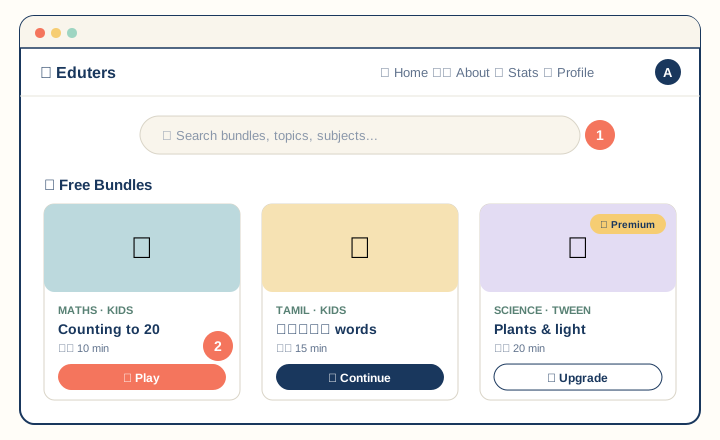
- Type a topic or subject into the search box to find a bundle quickly.
- Press the button on a bundle card to jump straight in. Tap anywhere else on the card to open the bundle page first.
The button on each card tells you what will happen:
| Button | What it means |
|---|---|
| ▶ Play | A free bundle. Play straight away. |
| 📝 Enroll | Join this bundle so it is saved to your account. |
| 🚀 Start | You have joined. Start your first go. |
| ▶ Continue | Carry on from where you stopped. |
| ✅ Done | You have finished. Open it to see your result. |
| 🔑 Sign In | You need to sign in first. |
| 🎒 Student username | If your parent or teacher gave you a username, press Sign In, then I have a student username, and type your username and password. |
| 🗓️ Plan | If a parent or teacher sets work for you, it is listed on your Plan page with what to do first, due dates and how many tries you have. A teacher or parent can also invite you, or you can join their class with a code from My Parents & Teachers on your Profile. |
| 👑 Upgrade | This bundle is part of a paid plan. |
2. Open the bundle page
The bundle page shows the subject, level, how long it takes, its rating and who made it.
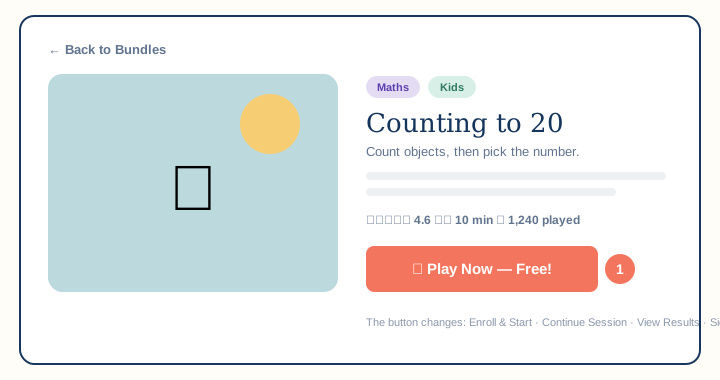
- Press the big button to begin. Depending on the bundle it says ▶ Play Now — Free!, 📝 Enroll & Start, 🚀 Start Session or ▶ Continue Session.
Use ← Back to Bundles to go back to the list.
3. Get ready and press Start Now
Before the first question, a card tells you how many Questions there are, how many Minutes you have (if the bundle is timed) and which Mode it uses.
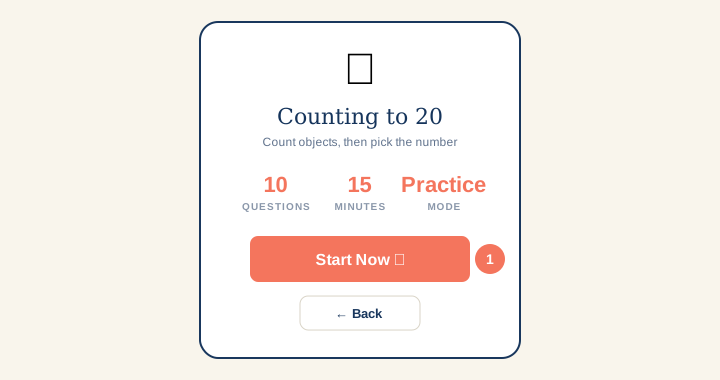
- When you are ready, press Start Now 🚀. Press ← Back if you want to choose something else.
While you read this card, Eduters is already getting the question pictures ready, so they appear quickly when you start.
4. Answer the questions
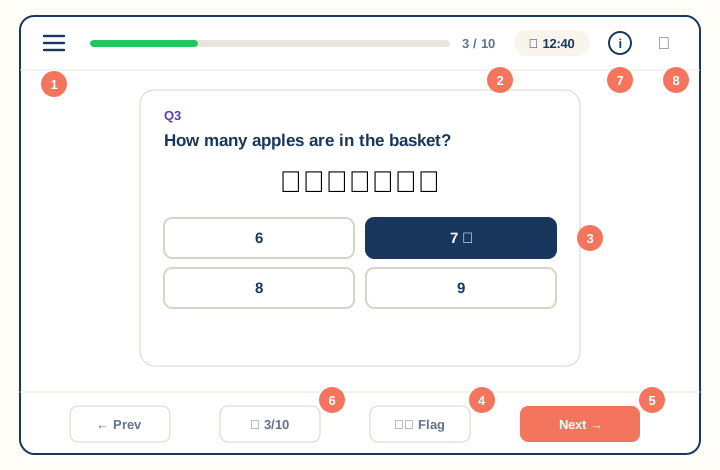
- ☰ Questions menu: jump to any question. Green numbers are answered, red are flagged and yellow are skipped.
- Progress bar and timer: shows which question you are on (for example 3 / 10). A clock appears if the bundle is timed.
- Your answer: choose or enter your answer here.
- 🏳️ Flag: mark a question you want to look at again. It turns into 🚩.
- Next →: go to the next question. On the last question it says Finish.
- ▦ Overview: see all the questions at once (see step 6).
- ⓘ Bundle info: about this bundle, plus your answered, flagged and skipped counts.
- ✕ Exit: leave the session.
Use ← Prev to go back one question. Your answers stay selected when you move between questions.
Different kinds of questions
| You see | What to do |
|---|---|
| A list of answers | Tap one answer. Tap another to change your mind. |
| Buttons you can press more than once | Some questions have more than one right answer. Select all the correct ones and leave the wrong ones unselected. |
| Four pictures | Tap the picture you think is right. You can also use the keyboard. |
| A number pad | Tap the numbers, or type them on your keyboard. |
| Words or sentences to put in order | Drag them into the right order, or use the up and down arrows. Order matters! |
| A ▶ listening button | Press play to hear the clip. You can pause, move through it, or play it again. |
| A white drawing board | Draw your answer with your finger, a mouse or a pen. Choose from five colours, and use Clear to start again. Your teacher looks at drawings; they are not marked automatically. |
| An abacus, clock, shape, calendar or set of items | These are helpers. Look at them carefully, then answer below. |
Maths may appear in proper maths writing, such as fractions and powers. Just read it like a normal question.
If you skip a question
If you press Next without answering, the question is marked skipped. You can come back to it later from the ☰ menu or the overview.
5. Practice mode: check as you go
Some bundles use Practice mode, which helps you learn while you play.
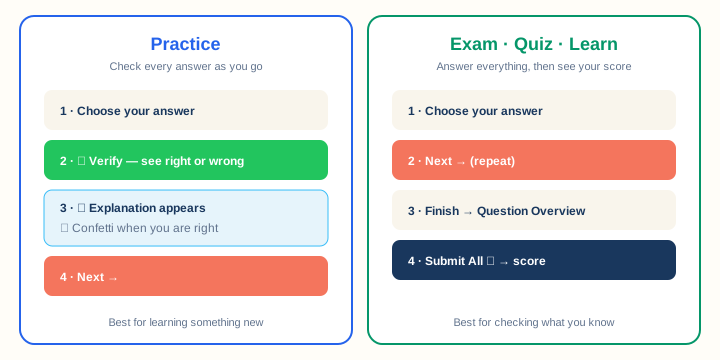
In Practice:
- Choose your answer.
- Press ✓ Verify to see whether you are right.
- Read the 💡 Explanation to learn why. You get confetti when you are right! 🎉
- Press Next → to carry on.
In Exam, Quiz and Learn modes you just press Next → after each answer. You see your score at the end.
6. Check your answers and submit
After the last question, press Finish to open the Question Overview. You can also open it at any time with the ▦ button.
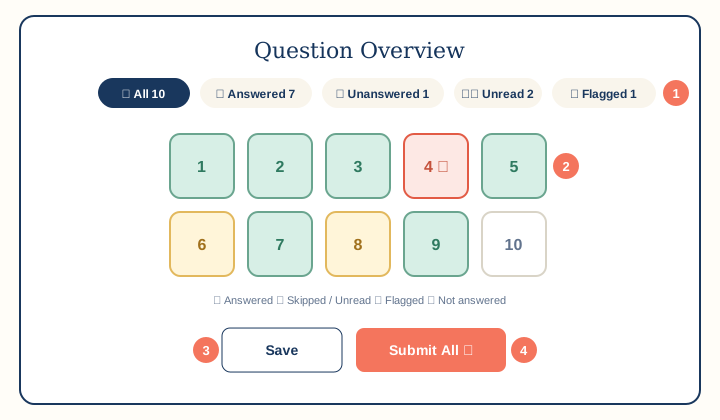
- Filters: show All, Answered, Unanswered, Unread or Flagged questions. The number shows how many are in each group.
- Question tiles: tap a number to go back to that question.
- Save: keep your answers so you can finish later. This needs you to be signed in.
- Submit All 🎯: hand in your answers and see your score.
Before you submit: look at Unread and Flagged. Those are the questions you skipped or wanted to check again.
7. See your score
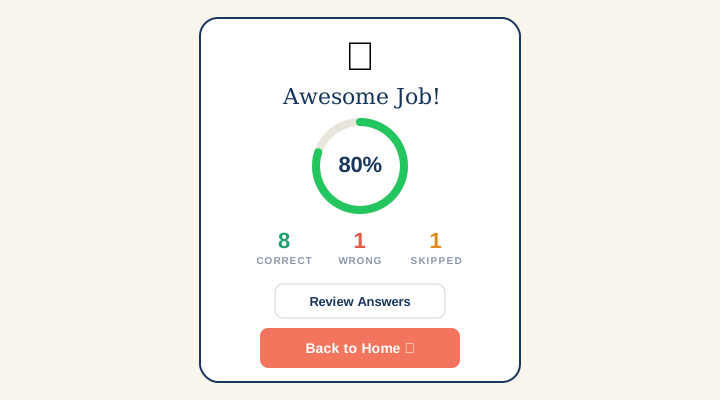
You'll see your score, plus how many answers were Correct, Wrong and Skipped.
- Review Answers takes you back to the overview so you can look at each question.
- Back to Home 🏠 returns you to the bundle list.
8. Stop now and carry on later
- Open the overview (▦) and press Save.
- Leave with ✕.
- Next time, find the bundle under ⏳ Continue Learning and press ▶ Continue.
Free bundles played without signing in are not saved. You'll see "Sign in to save your progress." If you want to keep your score, sign in first.
9. Track your progress
Once you are signed in, choose 📊 Stats in the top bar (or at the bottom on a phone).
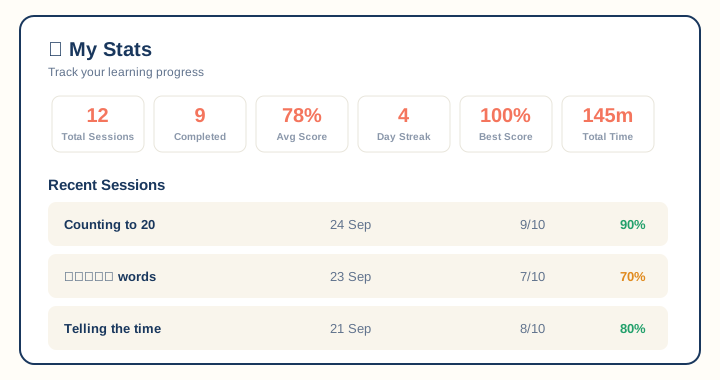
| Tile | Meaning |
|---|---|
| Total Sessions | How many bundles you have started. |
| Completed | How many you have finished. |
| Avg Score | Your average score. |
| Day Streak | How many days in a row you have learned. Keep it going! |
| Best Score | Your highest score. |
| Total Time | Minutes spent learning. |
Recent Sessions lists your latest bundles with the date and score.
10. Make Eduters your own
Tap your letter in the top-right corner (or 👤 Profile) to open My Profile.
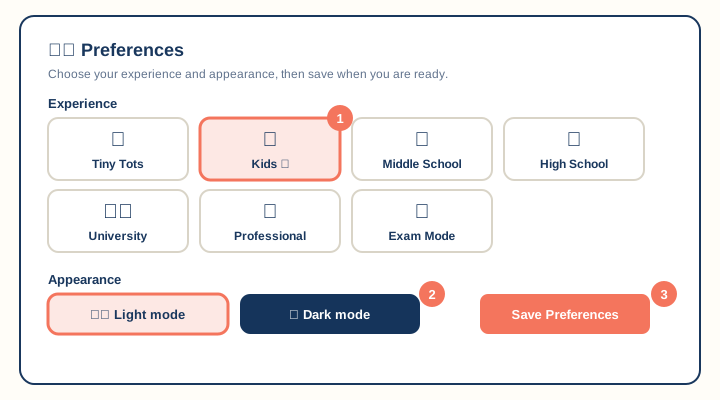
- Experience: choose the look that suits you: Tiny Tots, Kids, Middle School, High School, University, Professional, School Exams or Exam Mode.
- Appearance: choose Light mode or Dark mode.
- Press Save Preferences. Your choice is remembered on every device you sign in on.
You can also change your Display Name and press Save Changes. To leave, press Sign Out in the Account section.
Something not working?
| Problem | Try this |
|---|---|
| A picture does not appear | Wait a moment or check your internet connection, then move to the next question and back. |
| I can't hear the audio | Check your volume and headphones, then press play again. |
| My answers were not saved | Make sure you are signed in and press Save in the overview before you leave. |
| The button says 🔑 Sign In | This bundle needs an account. Press Sign In and continue with Google. |
| The button says 👑 Upgrade | This bundle is part of a paid plan. Ask a parent or teacher. |
Still stuck? Ask a grown-up to email support@eduter.com with the bundle name and what happened.