Publisher guide
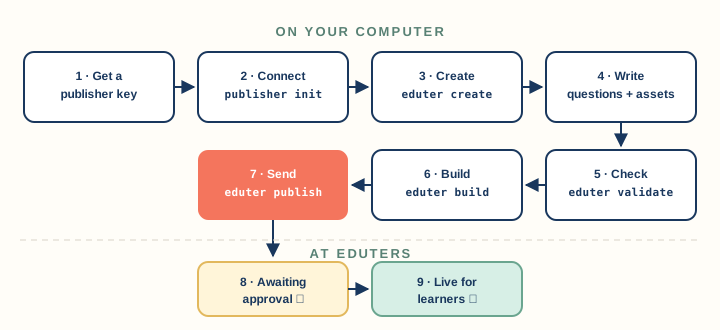
Publishers are teachers, tutors and organisations who create Eduters bundles. You write each question as a simple text file, add your pictures and audio, check your work with the Eduter CLI tool, and send the bundle to Eduters. After a quick review, it goes live for learners.
1. Become a publisher
Email support@eduter.com to ask for a publisher account. Once approved, the Eduters team gives you:
- the Eduter CLI for your Windows computer (the
edutercommand), - the address of the Eduters publishing service, and
- your publisher key.
Keep your key private. It works like a password for publishing. Don't email it on, put it in a shared folder, or save it inside a bundle. If you think someone else has seen it, ask us to replace it. The old key then stops working straight away.
2. Connect the Eduter CLI
Open a terminal (for example Windows Terminal or PowerShell) and save your connection once. prod is a name you choose for this connection:
eduter publisher init --target prod --api-url <service-address> --api-key <your-publisher-key>
The connection is saved for your Windows user only. To review or edit it later, run eduter config. Run eduter help at any time to list every command.
To keep the Eduter CLI up to date, run eduter update. It shows, in green, the command to copy and run.
3. Create a new bundle
Every bundle must be created by the Eduter CLI. It gives the bundle its unique bundle key and sets up the folder correctly. Go to your bundle content folder and run:
eduter create
The Eduter CLI prints the new key, for example 12-AB12CD, and opens its folder:
| In the folder | What it is |
|---|---|
____.md |
The bundle's details: name, title, description, picture and settings. |
0001.md, 0002.md … |
One file per question, in order. |
assets/ |
Create this folder for your pictures and audio. |
Output/, Split/ |
Working folders used by the Eduter CLI. Don't edit these. |
Don't create or rename bundle folders by hand. Always start a new bundle with
eduter createand keep working in the folder it made. To add more question files later, runeduter ap <bundle-key>.
4. Describe your bundle
Open ____.md and fill in the details learners will see on the bundle card and page:
# Counting to 20

_Name:_ Counting to 20
_Title:_ Counting to 20
_SubTitle:_ Count objects, then pick the number
_Description:_ Ten friendly counting questions with pictures.
_Tags:_ maths, counting, kids
_SessionMode:_ VerifyOnTheGo
_FontProfile:_ TamilFriendly
| Setting | Notes |
|---|---|
| Cover picture | Required. A local image in your assets folder. It is shown on the bundle card. |
_Name:_, _Title:_, _SubTitle:_, _Description:_ |
Shown to learners. Keep the subtitle short. |
_Tags:_ |
Comma-separated words that help learners find the bundle. |
_SessionMode:_ |
How the bundle plays: VerifyOnTheGo (Practice: check each answer and see explanations), PlayLikeExam (Exam, the default), VerifyAtTheEnd (Quiz) or Default (Learn). |
_FontProfile:_ |
Optional, for Tamil text: TamilSans, TamilSerif, TamilFriendly (recommended for young children) or TamilRounded. |
The Eduters team sets the category, level and duration when they review your bundle.
5. Write your questions
Each numbered file is one question. Keep the lines the Eduter CLI created at the top (such as _Ukey:_); they identify the question.
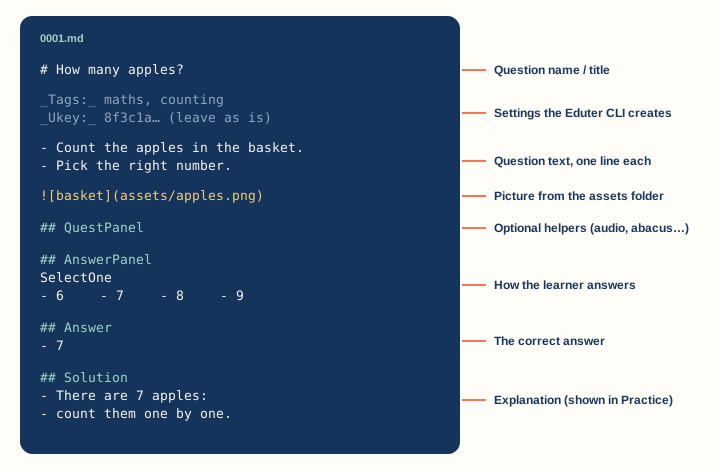
# How many apples?
- Count the apples in the basket.
- Pick the right number.

## QuestPanel
## AnswerPanel
SelectOne
- 6
- 7
- 8
- 9
## Answer
- 7
## Solution
- There are 7 apples: count them one by one.
| Part | What to write |
|---|---|
# … |
The question's name. |
- … lines |
The question text, one line each. Every question needs visible text. |
 |
A picture. It must be a file in your assets folder, not a web link. |
## QuestPanel |
Optional helpers shown with the question, such as an audio clip or an abacus. |
## AnswerPanel |
How the learner answers (see the table below). |
## Answer |
The correct answer or answers. |
## Solution |
The explanation learners see in Practice mode. |
You can write maths with LaTeX between dollar signs, for example $\frac{2}{5}$.
Answer panels
| Panel | Write | Answer |
|---|---|---|
SelectOne |
One option per line | Exactly one option. Use it for true/false and missing words too. |
MultiOption |
One option per line | Each correct option on its own line. Learners must pick all of them, and only them. |
PictureChoice |
- label: assets/picture.png for each of four pictures |
The label of the correct picture. |
NumberPad |
Nothing else | A single number. |
SorterPad |
- key: text for each item, in any order |
Every key, in the correct order. |
DrawingBoard |
- Mode: FreeDraw, or - Mode: GuidedDraw and - GuideUrl: assets/guide.svg |
Next. Drawings are kept for a teacher and are not scored. |
A picture-choice example:
## QuestPanel
Audio
- Listen: assets/prompt.mp3

## AnswerPanel
PictureChoice
- tree: assets/tree.png
- mango: assets/mango.png
- boat: assets/boat.png
- kolam: assets/kolam.png

## Answer
- tree
For listening questions, put an MP3 file in assets and add an Audio helper. Don't put the answer in the audio label.
6. Check and build
Run these from your bundle content folder, using your bundle key:
eduter validate 12-AB12CD
eduter build 12-AB12CD
Validate checks your bundle details and every question file: each question needs text and answers that fit its answer panel, and every picture must exist in assets. It stops at the first question with a problem and lists what to fix. Fix it, then run the command again. Build turns your files into the package that is sent to Eduters.
7. Publish
eduter publish 12-AB12CD --target prod
The Eduter CLI checks your key, validates and builds again, then uploads the bundle with its pictures and audio. It shows the target and folder it is using, so you can confirm you are publishing the right bundle to the right place.
Your bundle is now Awaiting approval. Learners can't see it yet. The Eduters team reviews it and, once approved, it appears in the portal.
8. Update a published bundle
- Edit the files in the same bundle folder.
- Run
eduter publish <bundle-key> --target prodagain.
Every update is reviewed again before learners see it. To replace a picture, keep the same file name and path. Learners who already started a session may keep the settings they began with.
Quality checklist
- The cover picture is clear and suits the age group.
- Every question has short, clear text a learner can read on a phone.
- Pictures describe the answer without relying on words inside the image.
- Picture-choice questions have four clearly different pictures.
- Every Practice question has a helpful
## Solution. - Audio is clear, and does not give away the answer in its label.
-
eduter validateruns with no errors.
Troubleshooting
| Message or problem | What to do |
|---|---|
| Validation says an image is missing | Put the file in assets and use the exact name and path, for example assets/apples.png. Web links and full computer paths are not allowed. |
| Validation says a question has no text | Add at least one - … question line. |
| File numbers are not in sequence | Run bundle r <bundle-key> to renumber the question files. |
| "Configure this publisher target first" | Run eduter publisher init (step 2) with the same target name you publish with. |
| Your key is rejected | It may have been replaced or switched off. Email support@eduter.com. |
| The bundle is not visible to learners | It is waiting for approval. Updates are reviewed each time. |